The Smart File Backup Strategy: How to Never Lose Important Files Again
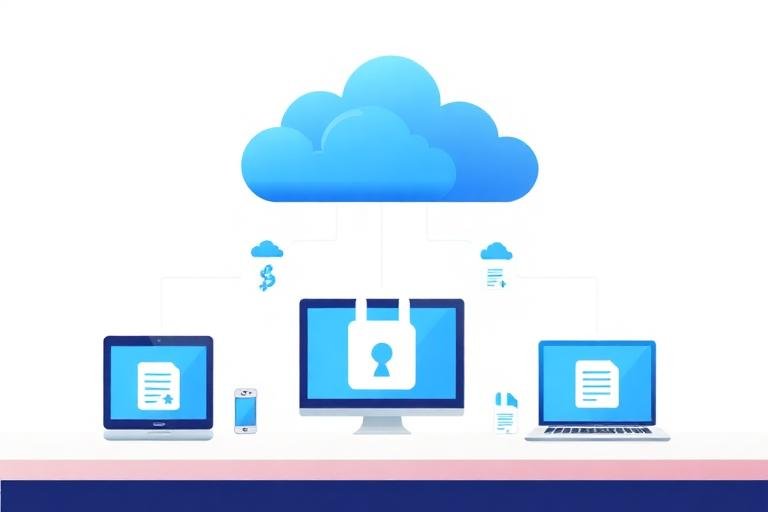
A hard drive fails. A laptop gets stolen. A ransomware attack encrypts everything. A toddler discovers the delete key. A coffee spill at exactly the wrong moment.
File loss isn't a question of "if" - it's a question of "when." And when it happens, the difference between a minor inconvenience and a catastrophic disaster comes down to one thing: whether you had a backup.
Yet according to recent surveys, 30% of people have never backed up their files. And among those who do back up, the majority haven't tested whether their backups actually work.
Let's fix that with a practical, no-nonsense backup strategy.
The 3-2-1 Rule
The gold standard for backups is deceptively simple:
3 copies of your data
2 different storage media
1 copy off-site
Here's what that looks like in practice for a typical remote worker:
Original files on your laptop (copy 1, media 1)
Cloud sync via Google Drive, OneDrive, or Dropbox (copy 2, media 2, off-site ✓)
External hard drive backup, stored at a different location or in a fireproof safe (copy 3, media 2 variant)
This setup protects against:
Hardware failure (copies 2 and 3 survive)
Theft (off-site copy survives)
Ransomware (external drive copy, if disconnected, survives)
Accidental deletion (cloud services maintain version history)
Natural disaster (off-site copy survives)
Cloud Backup vs. Cloud Sync
These are different things, and the distinction matters:
Cloud sync (Google Drive, Dropbox, OneDrive) mirrors your local files to the cloud. If you delete a file locally, it's deleted in the cloud too. If ransomware encrypts your files, the encrypted versions sync to the cloud.
Cloud backup (Backblaze, Carbonite, Acronis) captures snapshots of your files over time. If you delete a file or it gets corrupted, you can restore a previous version from any point in time.
For robust protection, you want both: sync for everyday convenience, backup for disaster recovery.
What to Back Up
Not everything needs the same level of protection. Prioritize:
Critical (back up immediately, multiple copies)
Financial records and tax documents
Contracts and legal documents
Client deliverables and project files
Family photos and videos
Password manager database
Business-critical data
Important (back up regularly)
Work documents and presentations
Email archives
Application settings and configurations
Creative work in progress
Personal documents
Low priority (back up occasionally)
Downloaded media (can be re-downloaded)
Application installers (can be re-downloaded)
Cached data
Automated Backup Schedule
The best backup is one you don't have to think about:
Continuous: Cloud sync for active work files - changes are backed up in real-time as you save.
Daily: Full system backup to an external drive or network storage, scheduled to run overnight.
Weekly: Verify that cloud backups are current and complete. Check one or two files to confirm they're accessible.
Monthly: Test a full restore. Pick a random file from three months ago and confirm you can recover it. This is the step most people skip - and the one that matters most.
Quarterly: Review your backup strategy. Has your file volume changed? Are you backing up new locations? Is your storage sufficient?
Compression for Efficient Backups
Large file collections backup faster when compressed. Before running a backup:
ZIP your project folders using ZipDownloader.com
Compress PDF documents to reduce their size
Convert high-resolution images to web-optimized formats if you're keeping separate web versions
Compression reduces backup size by 30–60% for typical document collections, which means faster backup times and lower cloud storage costs.
Version Control for Documents
Backups protect against loss. Version control protects against mistakes.
Cloud storage versioning: Google Drive keeps 100 versions for 30 days. Dropbox keeps versions for 30–180 days depending on your plan.
Manual versioning: Use the naming convention "filename_v1, filename_v2" for major milestones.
Git for code: If you write code, use Git. It's the most sophisticated version control system available and it's free.
Common Backup Mistakes
Backing up to the same drive - Copying files from one folder to another on the same hard drive protects against accidental deletion but not against drive failure.
Not testing restores - A backup you can't restore from is worthless. Test regularly.
Excluding cloud-only files - If critical files live only in Google Docs or Notion, they're not in your local backup. Export them periodically.
Ignoring mobile devices - Your phone probably contains photos, notes, and messages that aren't backed up anywhere else.
Using a single backup method - One backup isn't a backup - it's a single point of failure. Use multiple methods.
The Cost of Not Backing Up
Consider the cost of losing your files:
For a freelancer: Losing client deliverables could mean redoing weeks of work and damaging client relationships.
For a small business: Losing financial records could create tax compliance nightmares.
For anyone: Losing family photos and personal documents is irreversible.
Now compare that to the cost of backing up:
Cloud storage: $2–10 per month
External hard drive: $50–100 (one-time)
Cloud backup service: $5–10 per month
Time: 30 minutes to set up, then automatic
The math is clear. Set up your backup strategy today.
Written by Waseem, a Senior Software Engineer with 12 years of experience in secure web infrastructure, file systems, and data processing. Founder and lead developer of ZipDownloader. Learn more about us →
Ready to try it yourself?
Use our professional tools to process your files safely and instantly in your browser.

