How to Convert Audio Files Online - MP3, WAV, FLAC, AAC Guide
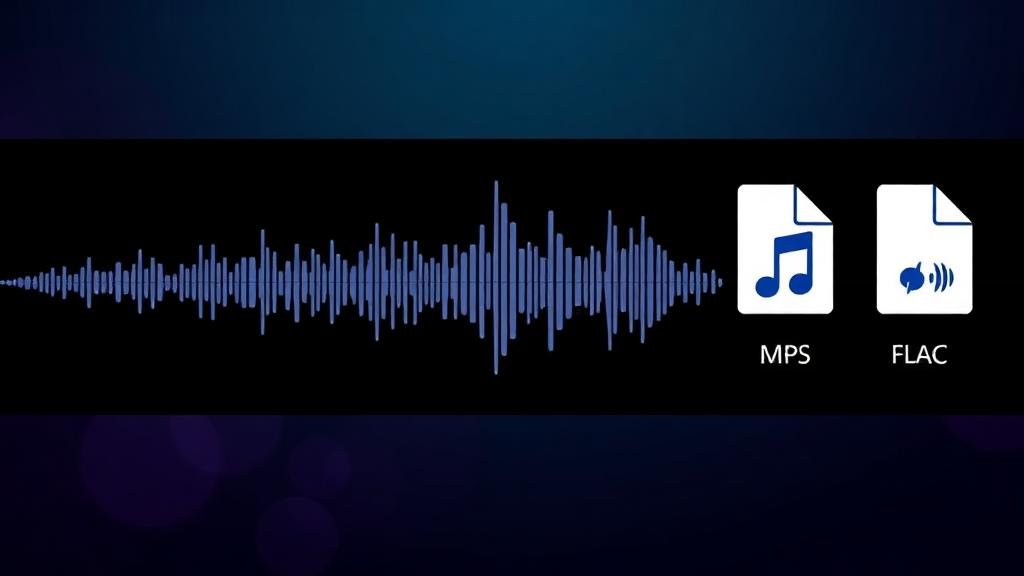
Your podcast recording is in WAV but you need MP3 for uploading. Your FLAC music collection won't play on your phone. The audio file you downloaded is in OGG and your editing software doesn't recognize it.
Audio format confusion is as common as image format confusion, and the stakes are similar: choose wrong and you get bloated files, degraded quality, or incompatible media.
Here's a clear guide to audio formats: what each one does, when to use it, and how to convert between them.
Audio Formats Explained Simply
MP3 (MPEG Audio Layer III)
The universal audio format. Every device, every platform, every app supports MP3. It uses lossy compression - throws away audio data your ears probably won't miss - to achieve small file sizes.
Best for: Podcasts, casual music listening, sharing audio, general purpose
File size: ~1 MB per minute at 128 kbps
WAV (Waveform Audio)
The uncompressed standard. WAV files contain raw audio data with no compression whatsoever. Studio quality, massive file sizes.
Best for: Audio production, recording, editing, archival
File size: ~10 MB per minute
FLAC (Free Lossless Audio Codec)
The audiophile's choice. FLAC compresses audio without losing any data. The decompressed audio is bit-for-bit identical to the original.
Best for: Music archival, high-quality listening, when quality matters
File size: ~5 MB per minute
AAC (Advanced Audio Coding)
Apple's preferred format and the successor to MP3. Better quality than MP3 at the same file size. Used by iTunes, YouTube, and most streaming services.
Best for: Apple devices, streaming, better quality than MP3 at same size
File size: ~1 MB per minute at 128 kbps
OGG Vorbis
The open-source alternative to MP3 and AAC. Good quality, free from patents, but not universally supported.
Best for: Gaming, open-source projects, Spotify (uses internally)
File size: ~1 MB per minute at 128 kbps
Format Comparison Table
| Format | Compression | Quality | File Size | Compatibility |
|---|---|---|---|---|
| MP3 | Lossy | Good | Small | Universal |
| WAV | None | Perfect | Very Large | Universal |
| FLAC | Lossless | Perfect | Large | Good |
| AAC | Lossy | Very Good | Small | Very Good |
| OGG | Lossy | Good | Small | Moderate |
| WMA | Lossy | Good | Small | Windows |
| AIFF | None | Perfect | Very Large | Apple |
Bitrate: The Quality Dial
For lossy formats (MP3, AAC, OGG), bitrate determines quality:
MP3 Bitrates:
320 kbps - Indistinguishable from CD quality for most listeners
256 kbps - Excellent quality, recommended for music
192 kbps - Good quality, noticeable difference only on high-end equipment
128 kbps - Acceptable for speech, noticeable quality loss for music
96 kbps - Low quality, fine for voice memos and phone calls
64 kbps - Very low quality, only for speech where quality doesn't matter
Quick Guide:
Music → 256-320 kbps
Podcasts → 128-192 kbps
Voice recordings → 96-128 kbps
Background audio → 64-96 kbps
When to Convert (and When Not To)
Convert:
WAV to MP3/FLAC - Reduce storage usage dramatically
FLAC to MP3 - For devices that don't support FLAC
WMA to MP3 - For non-Windows compatibility
OGG to MP3 - For universal compatibility
Any format to AAC - For Apple devices and iTunes
Don't Convert:
MP3 to WAV - Doesn't improve quality (data already lost)
MP3 to FLAC - Same issue: can't recover lost data
Low bitrate to high bitrate - Re-encoding a 96 kbps MP3 at 320 kbps doesn't add quality
Between lossy formats - MP3 to AAC loses additional quality
The golden rule: you can always go from lossless to lossy, but never improve quality by going lossy to lossless or lossy to lossy.
How to Convert Audio Files Online
For quick conversions without installing software:
Visit ZipDownloader.com
Upload your audio file
Select the output format (MP3, WAV, FLAC, AAC)
Choose your quality/bitrate settings
Download the converted file
The conversion happens in your browser - fast, free, and private.
Audio Conversion for Common Scenarios
Scenario 1: Podcast Upload
Your recording is in WAV (huge file). Convert to MP3 at 128 kbps (mono) or 192 kbps (stereo). This gives excellent speech quality at manageable file sizes.
Scenario 2: Music for Phone
Your FLAC collection won't fit on your phone. Convert to MP3 at 256-320 kbps. You'll save 50-70% storage with negligible quality loss.
Scenario 3: Audio for Video Editing
Your video editor needs WAV or AIFF input. Convert your MP3 to WAV. Note: this doesn't improve quality, but it provides the uncompressed format the editor expects.
Scenario 4: Ringtone Creation
Most phones accept MP3 or M4R (iPhone). Convert your audio to MP3 at 192 kbps, trim to your desired section, and transfer to your phone.
Scenario 5: Archiving Vinyl Records
You've digitized your vinyl collection. Save masters as FLAC (lossless, half the size of WAV) and create MP3 copies at 320 kbps for everyday listening.
Preserving Quality During Conversion
Start with the highest quality source - Always convert from originals, not from previously converted files
Choose appropriate bitrate - Don't default to the lowest or highest; match the content
Use CBR for compatibility, VBR for quality - Constant Bit Rate works everywhere; Variable Bit Rate gives better quality per file size
Don't chain conversions - Converting WAV→MP3→AAC→OGG degrades quality at each step
Keep originals - Store master files in WAV or FLAC; create lossy copies as needed
Audio File Sizes: Planning Storage
For a 1-hour audio file:
| Format | Approximate Size |
|---|---|
| WAV (CD quality) | 600 MB |
| FLAC | 300 MB |
| MP3 320 kbps | 144 MB |
| MP3 192 kbps | 86 MB |
| MP3 128 kbps | 58 MB |
| MP3 64 kbps | 29 MB |
Plan your storage accordingly, especially for podcasts and music libraries that accumulate hundreds of hours.
Audio format conversion doesn't have to be complicated. Know your source format, know your destination, choose an appropriate quality level, and use a reliable converter like ZipDownloader.com. Your files will play everywhere, sound great, and not eat your storage alive.
Written by Waseem, a Senior Software Engineer with 12 years of experience in secure web infrastructure, file systems, and data processing. Founder and lead developer of ZipDownloader. Learn more about us →
Ready to try it yourself?
Use our professional tools to process your files safely and instantly in your browser.