Lossless vs Lossy Compression — What's the Difference and When to Use Each
Every time you save a file, share a photo, or stream a song, compression is working behind the scenes. It's the technology that makes a 4K movie fit on a streaming service, a photo small enough to email, and a song downloadable in seconds instead of minutes.
But there are two fundamentally different approaches to compression, and using the wrong one can ruin your files or waste your storage. Here's the difference, explained without the computer science jargon.
The Simple Analogy
Imagine you have a 500-word essay and need to make it shorter.
Lossless compression is like removing formatting — double spaces become single spaces, repeated words are abbreviated. The essay is shorter, but you can restore the original perfectly.
Lossy compression is like summarizing — you keep the key points but lose the exact wording. The summary is much shorter, but you can't recreate the original from it.
Lossless Compression
How It Works
Lossless compression finds patterns in data and represents them more efficiently. No information is discarded. When decompressed, the output is bit-for-bit identical to the original.
Common Lossless Formats
ZIP, 7Z, RAR — File archives
PNG — Images
FLAC, ALAC — Audio
TIFF (with LZW) — Images
GIF — Simple graphics (limited to 256 colors)
Typical Compression Ratios
Text files: 60-80% reduction
Program files: 30-50% reduction
Already compressed files: 0-5% reduction (can't compress much further)
Images (PNG vs uncompressed): 50-70% reduction
When to Use Lossless
Text and documents — Every character matters
Software and code — A single changed bit can break a program
Medical imaging — Diagnostic accuracy requires original data
Audio mastering — Studio recordings need perfect preservation
Archival storage — Future use cases are unknown; keep everything
Source files for editing — You'll re-export multiple times
Lossy Compression
How It Works
Lossy compression analyzes the data and removes parts that are least noticeable to human perception. For images, it discards fine details the eye barely sees. For audio, it removes frequencies the ear barely hears. The result looks or sounds nearly identical to the original but is dramatically smaller.
Common Lossy Formats
JPEG — Images
MP3, AAC, OGG — Audio
H.264, H.265, VP9, AV1 — Video
WebP — Images (can also be lossless)
Typical Compression Ratios
Photos: 80-95% reduction (JPG at 85% quality)
Audio: 70-90% reduction (MP3 at 192 kbps)
Video: 95-99% reduction (H.265)
When to Use Lossy
Web images — Speed and bandwidth matter more than pixel-perfect quality
Streaming media — Real-time delivery requires small files
Email attachments — Size limits make lossless impractical
Social media — Platforms re-compress uploads anyway
Casual storage — When storage costs outweigh quality concerns
Side-by-Side Comparison
| Aspect | Lossless | Lossy |
|---|---|---|
| Quality | Perfect | Near-perfect to acceptable |
| File Size | Moderately smaller | Dramatically smaller |
| Reversible | Yes | No |
| Multiple saves | No degradation | Quality degrades each save |
| Use case | Editing, archival, source files | Sharing, streaming, web |
| Processing speed | Fast | Varies |
The Quality-Size Tradeoff
This is the fundamental tradeoff in compression:
Lossless: No tradeoff on quality
You get perfect quality, but limited size reduction
A 10 MB photo might compress to 5-7 MB as PNG
Can't be compressed further without switching to lossy
Lossy: Adjustable tradeoff
You control how much quality to sacrifice for size
A 10 MB photo at 90% quality: ~800 KB (excellent quality)
Same photo at 60% quality: ~200 KB (noticeable artifacts)
Same photo at 20% quality: ~50 KB (severe artifacts)
The sweet spot for most lossy compression is where file size drops significantly but quality remains visually/audibly acceptable. For JPEG images, this is typically 80-85% quality. For MP3 audio, it's 192-256 kbps.
Generation Loss: The Hidden Danger of Lossy
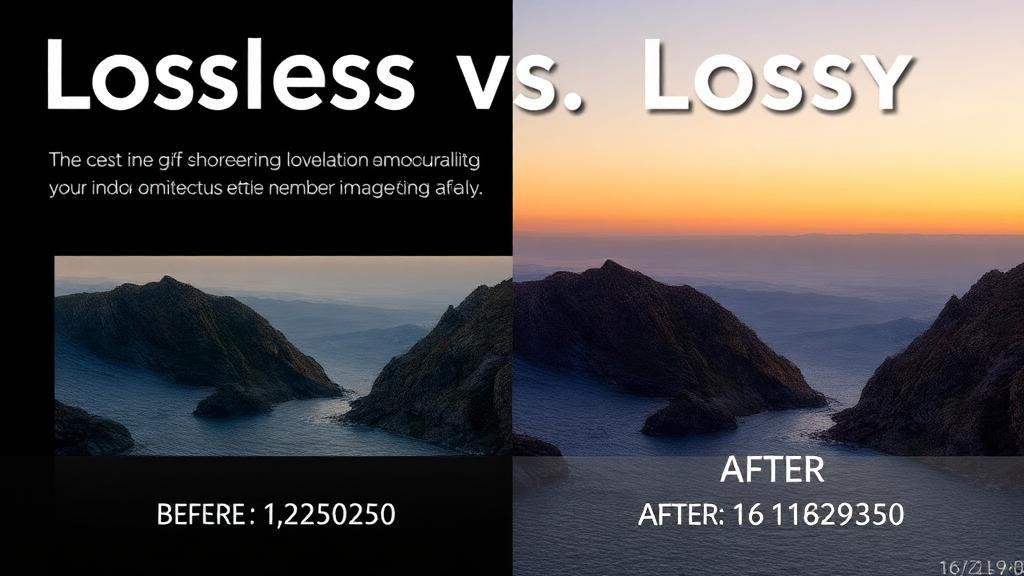
Every time you open a lossy file, edit it, and save it again, more data is lost. This is called generation loss.
Save a JPEG 5 times: visible artifacts appear
Save a JPEG 20 times: significant degradation
Re-encode an MP3: audio quality drops noticeably
This is why professionals work with lossless formats during editing and only export to lossy formats as the final step. Edit in PNG/TIFF, export to JPEG. Edit in WAV/FLAC, export to MP3.
Compression in Everyday Life
Sending Photos via Email
Your 8 MB photo needs to be under 2 MB for email. Lossy compression (converting to JPEG at 85% quality) gets it there. The recipient won't notice the difference.
Backing Up Documents
Use lossless compression (ZIP) for backups. Documents must be recoverable without any data loss. A corrupted comma in a spreadsheet can change a $1,000 figure to $1,000,000.
Storing Music
Want maximum quality? FLAC (lossless). Want to fit more songs on your phone? MP3 at 256 kbps (lossy, but excellent quality).
Sharing Videos
Raw video at 4K generates roughly 4 GB per minute. H.265 compression (lossy) reduces this to about 50-100 MB per minute at excellent quality. Without lossy compression, video sharing and streaming would be impossible.
Making the Right Choice
Ask yourself these questions:
Will I edit this file again? → Lossless
Is the file for sharing/web/streaming? → Lossy is usually fine
Is absolute accuracy critical? (medical, legal, financial) → Lossless
Am I the final audience? → Your preference
Is storage limited? → Lossy saves dramatically more space
The Practical Approach
Most people benefit from a two-copy strategy:
Master copy: Lossless format, stored on external drive or cloud
Working copies: Lossy format, sized for their specific use
When converting between formats using ZipDownloader.com, you're choosing where on the lossless-lossy spectrum your file should land. For images, choose PNG for lossless or JPEG/WebP for lossy. For documents, the conversion preserves all content perfectly. The key is matching the compression type to the file's purpose.
Written by Waseem, a software developer with 8 years of experience in web tools, file systems, and data processing. Founder and lead developer of ZipDownloader. Learn more about us →