How to Reduce File Size: The Ultimate Compression & Optimization Guide
We've all been there. You try to attach a file to an email and get the dreaded "attachment too large" error. Or you try to upload a document to a portal with a 10MB limit and your file is 47MB. Or your website takes forever to load because the images are massive.
File size is a problem that every digital worker encounters regularly. The good news? It's a solvable problem. Here's everything you need to know about reducing file sizes effectively.
Understanding File Compression
Before we get into specific techniques, let's understand what compression actually does. At its core, compression is about removing redundancy. If a piece of data contains patterns that repeat, those patterns can be represented more efficiently.
There are two types of compression:
Lossless compression removes redundancy without losing any data. When you decompress the file, you get back exactly what you started with. Think of it like taking all the air out of a vacuum-sealed bag - the clothes inside are unchanged, they just take up less space.
Lossy compression removes data that's deemed "less important." You can't get it back. But if done well, the loss is imperceptible. Think of it like summarizing a 10-page document into 2 pages - you lose some detail, but the essential message is preserved.
Reducing Image File Sizes
Images are usually the biggest offenders when it comes to bloated files.
Convert to the right format. A 5MB PNG photograph will become a 400KB JPG with no visible quality loss. If it's for the web, WEBP will be even smaller.
Resize before sharing. Your phone takes 12-megapixel photos (4032 �- 3024 pixels). If the image is going in an email or on a website, you probably don't need more than 1920 �- 1080. Resizing from 12MP to 2MP can reduce file size by 80%.
Adjust quality settings. For JPG and WEBP, quality settings between 75-85% are the sweet spot - visually identical to 100% but significantly smaller.
Reducing PDF File Sizes
PDFs can be surprisingly large, especially if they contain high-resolution images or embedded fonts.
Compress images within the PDF. Most of a large PDF's file size comes from images. Reducing image quality from 300 DPI to 150 DPI can cut the file size in half with minimal visible impact for on-screen viewing.
Remove unnecessary elements. Metadata, comments, form fields, and embedded multimedia all add to file size. Strip them out if they're not needed.
Use "Save As" instead of "Save." Over time, as you edit a PDF, it accumulates deleted data internally. Saving as a new file creates a clean copy.
Using ZIP Compression
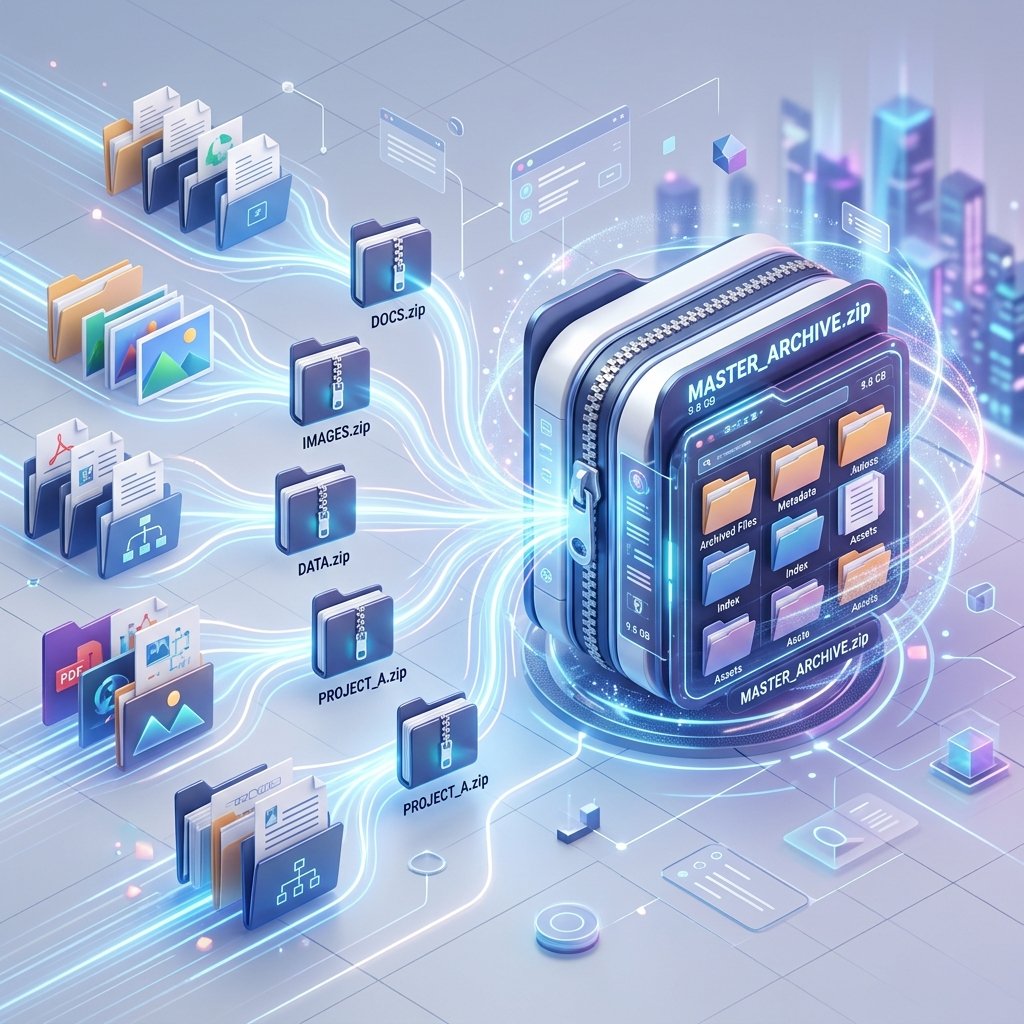
ZIP compression is your best friend for reducing the size of multiple files:
Text files (TXT, CSV, XML, JSON, HTML, CSS, JS) compress incredibly well - often 70-90% smaller.
Office documents (DOCX, XLSX, PPTX) are actually already ZIP files internally, so they won't compress much further.
Images and videos (JPG, PNG, MP4) are already compressed and won't shrink much in a ZIP.
The real power of ZIP for images and videos isn't size reduction - it's bundling. Sending one ZIP file instead of 50 individual images is faster and more reliable.
File Size Reduction Cheat Sheet
| File Type | Best Reduction Method | Expected Savings |
|---|---|---|
| Photos (PNG) | Convert to JPG/WEBP | 80-95% |
| Photos (JPG) | Reduce quality to 80% | 30-50% |
| Screenshots | Convert to WEBP | 40-60% |
| Text documents | ZIP compression | 70-90% |
| PDFs with images | Compress images in PDF | 40-70% |
| Multiple files | Bundle into ZIP | Variable + convenience |
| Videos | Reduce resolution/bitrate | 50-80% |
When NOT to Compress
There are times when compression is inappropriate:
Master copies - Always keep an uncompressed original of important files. Compress copies, not originals.
Already-compressed files - Compressing a ZIP file into another ZIP won't make it smaller. It might actually make it larger due to the overhead of the second archive.
Files requiring perfect fidelity - Medical imaging, scientific data, and legal documents often require exact reproduction. Use lossless compression only.
The Quick Fix Workflow
Next time you hit a file size limit, follow this workflow:
Check the format - Is the file in the optimal format? (PNG photo → JPG, uncompressed data → CSV)
Check the dimensions - Is the file larger than needed? (12MP image for a email → resize to 2MP)
Check the quality - Can quality be reduced without visible impact? (100% JPG → 80% JPG)
Bundle if multiple - Multiple files? ZIP them together.
Still too large? - Split into parts, use a cloud sharing link, or use a dedicated compression tool.
ZipDownloader.com offers all of these tools in one place - convert formats, create ZIP archives, and optimize your files without installing a single piece of software.
Written by Waseem, a Senior Software Engineer with 12 years of experience in secure web infrastructure, file systems, and data processing. Founder and lead developer of ZipDownloader. Learn more about us →
Ready to try it yourself?
Use our professional tools to process your files safely and instantly in your browser.