How to Convert HEIC to JPG - Open iPhone Photos on Any Device
You take a photo on your iPhone. You email it to a colleague. They reply: "I can't open this file. What's a .heic?"
This scenario plays out thousands of times every day. Since 2017, iPhones have saved photos in HEIC format (High Efficiency Image Container) by default. It's a great format - smaller files than JPEG at the same quality, which saves storage space on your phone. But it creates a compatibility headache whenever you share photos with non-Apple devices.
Windows PCs can open HEIC files with a free codec extension, but many users don't have it installed. Android devices have mixed support. Older software and web applications often reject HEIC entirely. And if you're uploading photos to a website, printing service, or business application, JPEG is still the universal standard.
Here's how to handle the conversion - and how to prevent the problem entirely.
What Is HEIC?
HEIC stands for High Efficiency Image Container. It's based on the HEVC (H.265) video codec, applied to still images. The key advantages:
50% smaller files than JPEG at equivalent quality
Better color depth - supports 16-bit color vs JPEG's 8-bit
Transparency support - like PNG, unlike JPEG
Multiple images - a single .heic file can contain multiple images (Live Photos, bursts)
The problem is purely compatibility. HEIC was developed by the MPEG group and requires licensing, which is why adoption outside the Apple ecosystem has been slow.
Method 1: Convert Online (Fastest)
For individual photos or small batches:
Visit ZipDownloader.com
Use the HEIC to JPG converter
Upload your .heic files (batch upload supported)
Download the converted JPG files
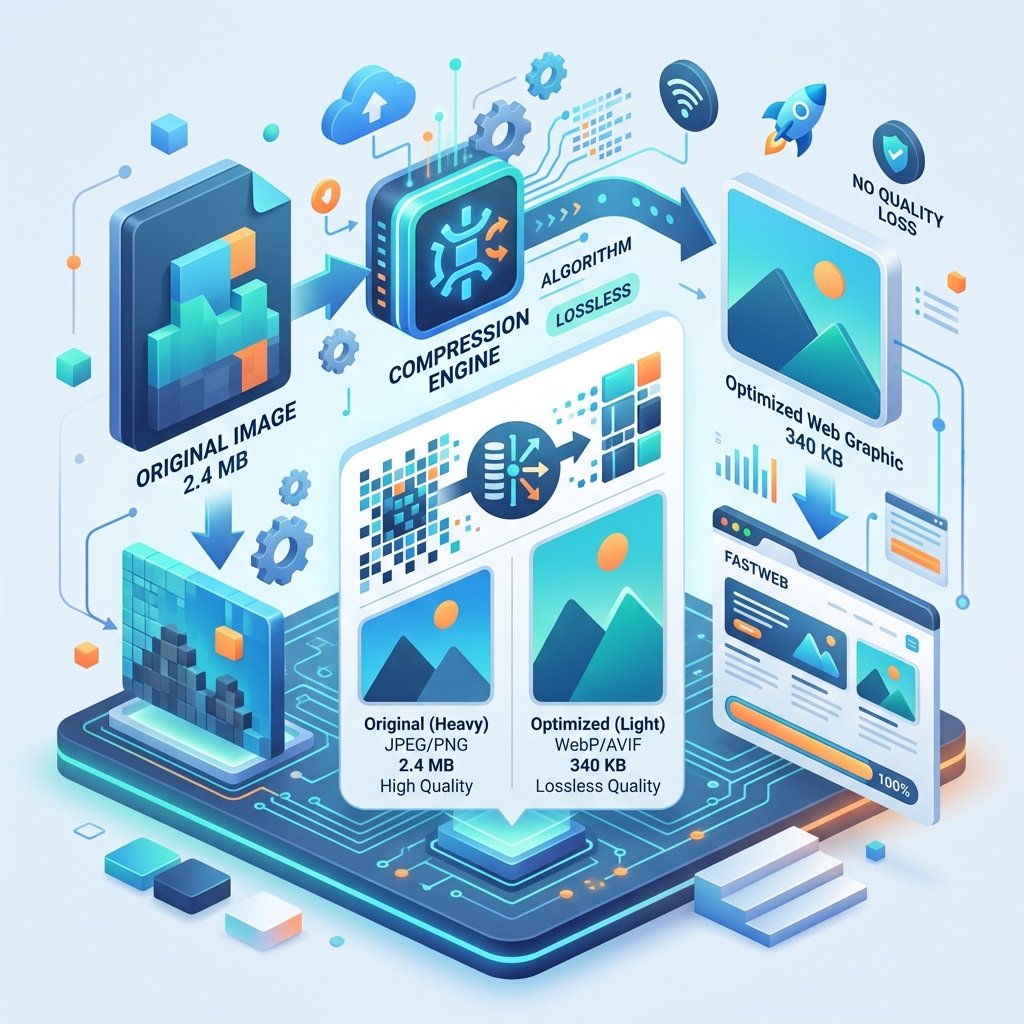
The conversion is lossless from the HEIC source - you get the full quality of the original photo in universally compatible JPEG format.
Method 2: Change iPhone Settings (Prevent the Problem)
You can tell your iPhone to save photos as JPEG instead of HEIC:
Open Settings
Tap Camera
Tap Formats
Select Most Compatible
This saves all future photos as JPEG. The trade-off: photos will take up roughly twice as much storage space on your phone. If storage isn't a concern, this is the simplest long-term solution.
Method 3: Automatic Conversion When Transferring
Apple thought about this problem and built a partial solution:
Open Settings
Tap Photos
Under "Transfer to Mac or PC," select Automatic
With this setting, your iPhone automatically converts HEIC to JPEG when you transfer photos via USB cable or AirDrop to a non-Apple device. However, this doesn't help with email attachments, cloud sharing, or messaging apps.
Method 4: Windows Built-in Support
Windows 10 and 11 can open HEIC files with a free extension:
Open the .heic file - Windows will prompt you to download the HEIF Image Extensions
Click "Get" in the Microsoft Store
Once installed, HEIC files open natively in Photos, Paint, and other Windows apps
This doesn't convert the files - it just lets Windows display them. If you need JPEG for upload or sharing, you'll still need to convert.
Method 5: macOS Preview
On a Mac, conversion is built in:
Open the HEIC file in Preview
File → Export
Select JPEG from the format dropdown
Choose quality (80–100%)
Save
For batch conversion on Mac: select multiple HEIC files in Finder, right-click, Quick Actions → Convert Image → JPEG.
Quality Considerations
When converting HEIC to JPEG, you're going from a more efficient format to a less efficient one. Here's what to expect:
File size increase: JPEG files will be roughly 1.5–2x larger than the HEIC originals. A 3MB HEIC photo becomes a 5–6MB JPEG.
Quality: At JPEG quality 90–100%, the conversion is visually lossless. You won't see any difference. Below 80%, you'll start noticing compression artifacts, especially in areas with smooth gradients (sky, skin tones).
Metadata preserved: EXIF data (date, camera settings, GPS location) transfers from HEIC to JPEG. If you want to strip this data for privacy, that's a separate step.
HEIC vs JPEG: Should You Even Convert?
Consider whether conversion is actually necessary:
Convert when:
Sharing with non-Apple users
Uploading to websites that don't support HEIC
Sending to print services
Storing in systems that require JPEG
Editing in software that doesn't support HEIC
Keep as HEIC when:
Storing on your iPhone (saves space)
Sharing with other iPhone/Mac users
Archiving (HEIC is technically better quality)
Using Apple's ecosystem exclusively
Batch Converting Large Photo Libraries
If you have thousands of HEIC photos to convert:
Online batch: ZipDownloader.com supports multiple file uploads for quick batch conversion
Mac batch: Select all → Quick Actions → Convert Image
Windows batch: Use a free tool like CopyTrans HEIC
For very large collections (10,000+ photos), a desktop tool is more practical than an online converter due to upload time.
The Bottom Line
HEIC is a superior image format held back by compatibility. Until the rest of the world catches up to Apple's adoption, JPEG remains the universal standard for sharing photos. Converting takes seconds with the right tool, and changing your iPhone settings can prevent the problem entirely for future photos.
Written by Waseem, a Senior Software Engineer with 12 years of experience in secure web infrastructure, file systems, and data processing. Founder and lead developer of ZipDownloader. Learn more about us →
Ready to try it yourself?
Use our professional tools to process your files safely and instantly in your browser.