Image Resolution and DPI Explained: What Every Designer Should Know
Resolution. DPI. PPI. Megapixels. These terms get thrown around constantly in design, photography, and web development - and they're constantly misunderstood. Let's demystify them once and for all.
Pixels: The Building Blocks
Every digital image is made of pixels - tiny colored squares. A 1920�-1080 image contains 1,920 pixels horizontally and 1,080 pixels vertically. That's 2,073,600 pixels total - roughly 2 megapixels.
The more pixels an image has, the more detail it can contain. A 12-megapixel photo from your phone has 12 million individual pixels, each storing color information.
Resolution: How Many Pixels
Resolution simply describes the dimensions of an image in pixels. A "high resolution" image has lots of pixels. A "low resolution" image has fewer.
Common resolutions:
SD (720p): 1280 �- 720 = 0.9 megapixels
Full HD (1080p): 1920 �- 1080 = 2.1 megapixels
4K: 3840 �- 2160 = 8.3 megapixels
Phone camera (12MP): 4032 �- 3024 = 12.2 megapixels
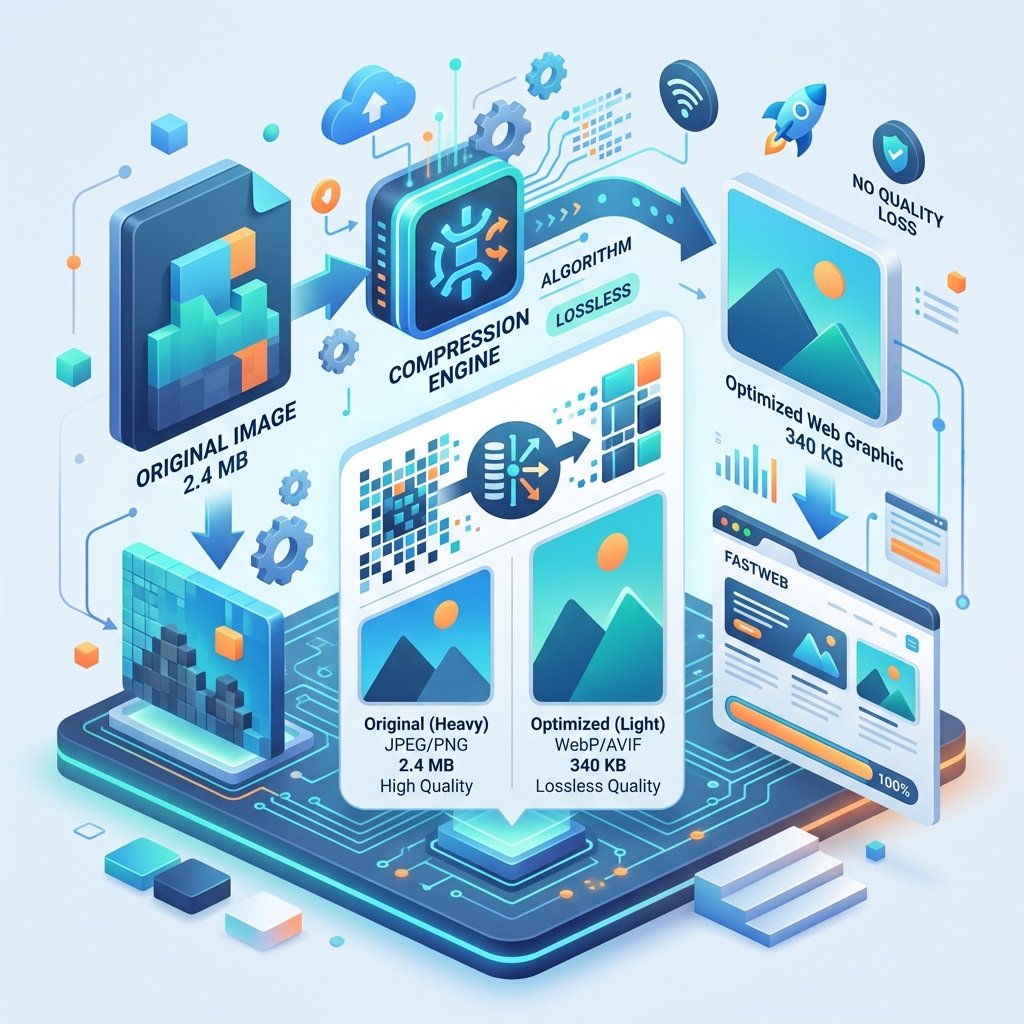
Higher resolution = larger file sizes. A 12MP photo as a PNG can be 15-25MB. As a JPG at 85% quality, it's typically 2-4MB.
DPI and PPI: The Printing Connection
DPI (Dots Per Inch) refers to how many ink dots a printer places per inch of paper. This is a property of the printer, not the image.
PPI (Pixels Per Inch) refers to how many pixels are displayed per inch on screen or in print. This is a property of the image as it relates to a physical size.
In everyday usage, people use DPI and PPI interchangeably. Technically incorrect, but everyone does it.
What DPI Means for Print
When you print a 3000�-2000 pixel image at:
300 DPI: It prints at 10 �- 6.67 inches (high quality, sharp text and detail)
150 DPI: It prints at 20 �- 13.33 inches (good quality for viewing at arm's length)
72 DPI: It prints at 41.67 �- 27.78 inches (poster size, but pixelated up close)
The relationship is: Print Size (inches) = Pixels ÷ DPI
Standard DPI Guidelines
| Use Case | Recommended DPI |
|---|---|
| Professional print (magazines, books) | 300 |
| Standard office printing | 150-200 |
| Large posters (viewed from distance) | 100-150 |
| Web/screen display | 72-96 (irrelevant - pixels matter more) |
DPI for Web: It Doesn't Matter (Sort of)
Here's the thing that confuses everyone: DPI is irrelevant for web images. Screens display pixels, not inches. A 1920�-1080 image looks exactly the same on screen whether it's tagged as 72 DPI or 300 DPI.
What matters for web is:
Pixel dimensions - does the image have enough pixels for the display area?
File size - smaller files load faster
A 1920�-1080 image at 72 DPI and the same image at 300 DPI are pixel-for-pixel identical on screen. The DPI tag only affects what happens when someone tries to print it.
Retina and High-DPI Displays
Modern devices (iPhones, MacBooks, many Android phones) have high-DPI displays that show 2-3 times more pixels per inch than traditional monitors. For these displays, you need images with 2-3�- the pixel dimensions to look sharp.
A 500�-500 pixel image looks fine on a traditional monitor but blurry on a Retina display. For Retina, you'd need a 1000�-1000 image displayed in a 500�-500 space.
Practical Tips
For web: Focus on pixel dimensions, not DPI. Serve the right size for the display area.
For print: Ensure your images have at least 300 PPI at the intended print size.
For photos: Keep originals at full resolution. Resize copies for specific uses.
For screenshots: Capture at your display's native resolution. Don't upscale - it just adds file size without adding detail.
Converting formats: When converting between image formats (JPG ↔ PNG ↔ WEBP), the pixel dimensions and DPI stay the same. Only the compression and file size change.
The Upscaling Myth
You cannot add resolution to an image by increasing its DPI setting or pixel dimensions after the fact. If you take a 200�-200 image and resize it to 2000�-2000, you don't get more detail - you get the same fuzzy image, just bigger. The new pixels are interpolated (guessed) by the software.
The rule: You can always downscale (reduce) resolution. You can never meaningfully upscale (increase) it.
Written by Waseem, a Senior Software Engineer with 12 years of experience in secure web infrastructure, file systems, and data processing. Founder and lead developer of ZipDownloader. Learn more about us →
Ready to try it yourself?
Use our professional tools to process your files safely and instantly in your browser.