How to Convert PNG to JPG Without Losing Quality
You've got a folder full of PNG screenshots, and each one is 3-5MB. Your website is loading slowly, your email attachments are bouncing, and your phone storage is screaming for help. The solution? Convert those PNGs to JPGs and watch the file sizes plummet.
But wait - won't you lose quality? Maybe. Maybe not. It depends entirely on what's in the image and how you handle the conversion. Let's walk through it properly.
Understanding the Difference
PNG and JPG handle images in fundamentally different ways.
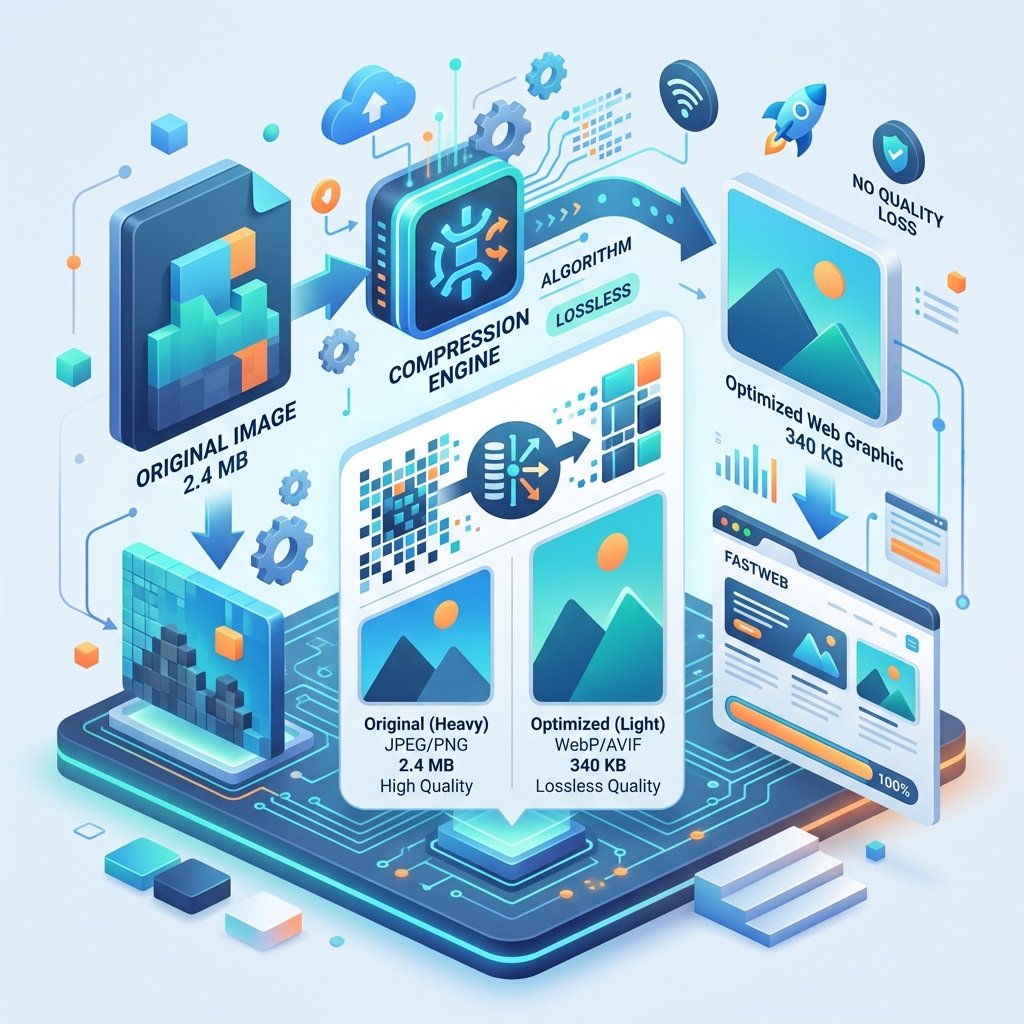
PNG uses lossless compression. Every single pixel is preserved exactly as it was. This makes PNG perfect for screenshots, graphics with text, logos, and anything with sharp edges or transparency. The downside: files are large.
JPG uses lossy compression. It analyzes the image, identifies areas where the human eye won't notice changes, and throws away that data. This makes JPG files dramatically smaller - but at the cost of some detail, especially around sharp edges.
When to Convert PNG to JPG
Convert when:
The image is a photograph or has smooth gradients
You don't need transparency (JPG doesn't support transparent backgrounds)
File size is a priority (web uploads, email attachments, social media)
The image will be viewed at small to medium sizes (full-screen viewing hides most compression artifacts)
Don't convert when:
The image contains text or sharp edges (screenshots, diagrams, logos) - JPG compression creates visible artifacts around high-contrast edges
You need transparency - JPG fills transparent areas with white or black
You're creating a master copy - always keep the original PNG as your source
Choosing the Right Quality Setting
JPG quality is measured on a scale from 0 to 100. Here's what each range means in practice:
| Quality | File Size | Visual Quality | Best For |
|---|---|---|---|
| 100% | Large | Perfect | Archival, print |
| 85-95% | Medium | Excellent | General sharing |
| 75-85% | Small | Very Good | Web, email |
| 50-75% | Very Small | Good | Thumbnails, previews |
| Below 50% | Tiny | Noticeable artifacts | Extreme compression needs |
The sweet spot for most people is 80%. At this level, the file is 70-80% smaller than the PNG, and the quality difference is virtually invisible to the human eye.
How to Convert PNG to JPG on ZipDownloader.com
Open the PNG to JPG tool
Upload your PNG file (or multiple files)
Click Convert
Download your JPG
The conversion happens entirely in your browser - the image never leaves your computer. This means it's instant, private, and works even without an internet connection (once the page is loaded).
Batch Conversion: The Real Time Saver
If you have 50 PNGs to convert, doing them one at a time is painful. Most online converters support batch conversion - upload all your files at once and download them all as JPGs. On ZipDownloader.com, you can upload as many files as you want and convert them simultaneously.
The Transparency Trap
This catches people every time. You have a PNG logo with a transparent background. You convert it to JPG. Suddenly your logo has a white rectangle behind it.
That's because JPG doesn't support transparency. When you convert, the transparent pixels have to become something - and that something is usually white.
Solution: If you need the image for a colored background, add the correct background color to the PNG before converting. Or better yet, keep it as a PNG. If file size is the concern, WEBP supports both transparency and small file sizes.
Real-World File Size Comparisons
Here are some actual conversions from common scenarios:
Screenshot (1920�-1080): PNG 2.8MB → JPG 80% quality: 210KB (92% reduction)
DSLR Photo (4000�-3000): PNG 18MB → JPG 85% quality: 1.2MB (93% reduction)
Graphic with text: PNG 450KB → JPG 90% quality: 180KB (60% reduction, but with visible artifacts around text)
The pattern is clear: photographs compress beautifully into JPG. Graphics with text or sharp edges? Not as much.
Best Practices
Always keep the original PNG. Convert copies, not originals. You can always re-convert from the source, but you can never un-compress a JPG.
Check the output. Zoom into areas with detail - especially text, fine lines, and high-contrast edges. If you see blocky artifacts, increase the quality setting.
Name files consistently. Don't have "screenshot.png" and "screenshot.jpg" in the same folder. Use "screenshot-web.jpg" to indicate it's the web-optimized version.
Consider WEBP. If the images are for a website, WEBP gives you smaller files than JPG with better quality. It's the best of both worlds.
Written by Waseem, a Senior Software Engineer with 12 years of experience in secure web infrastructure, file systems, and data processing. Founder and lead developer of ZipDownloader. Learn more about us →
Ready to try it yourself?
Use our professional tools to process your files safely and instantly in your browser.