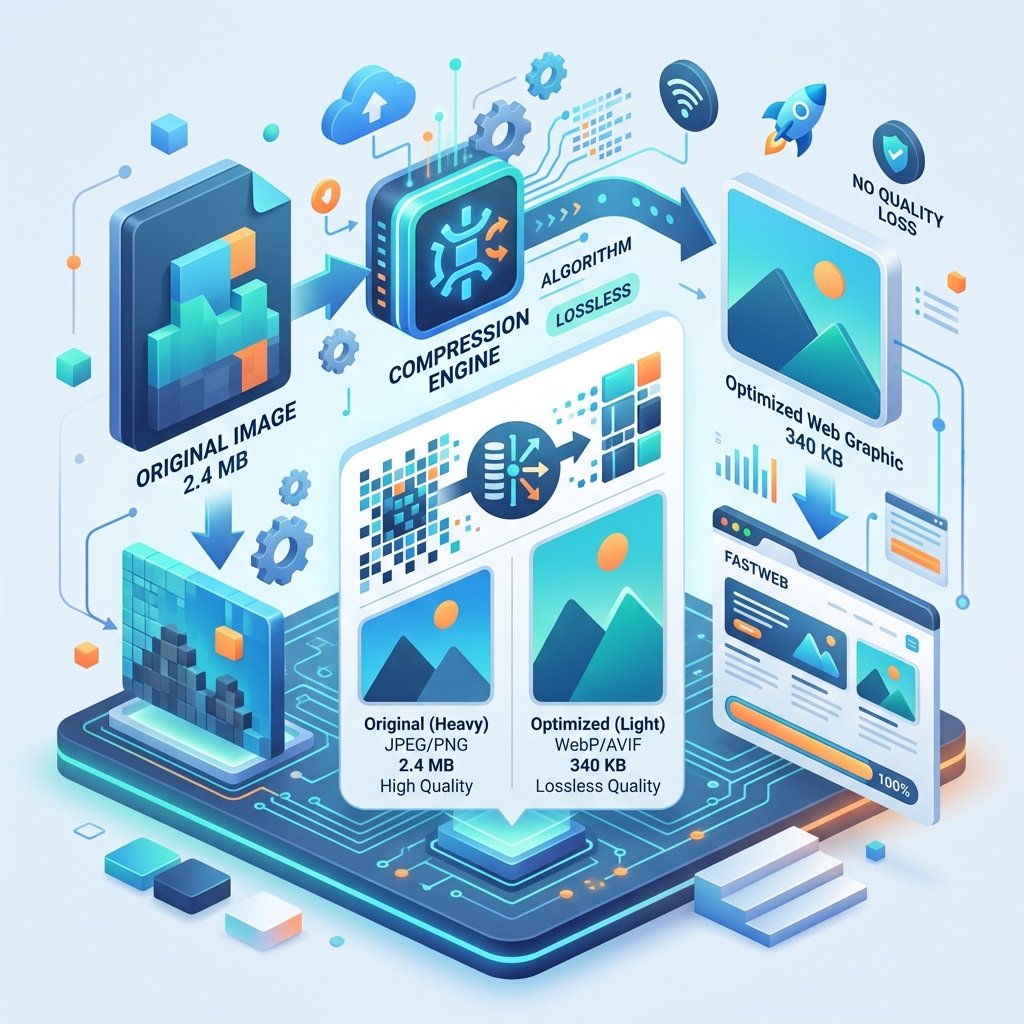
How to Reduce Image File Size Without Losing Visible Quality
Your website takes 8 seconds to load because the hero image is 4.5 MB. Your email bounces because the attached photos exceed the 25 MB limit. The upload form rejects your image because it's over the 2 MB maximum.
Large image files are a constant headache, and the obvious solution - "just lower the quality" - often results in blurry, artifact-ridden images that look unprofessional.
The truth is, you can usually reduce image file size by 60-80% without any visible quality loss. The key is knowing which techniques to use and when to apply them.
Why Images Are So Large
Before we shrink files, let's understand why they're large:
Resolution overkill - Your 4000x3000 pixel phone photo has more detail than you need for a website or email
Inefficient format - BMP and TIFF files store data without compression
Metadata bloat - EXIF data, color profiles, and thumbnails add kilobytes
Over-quality - Saving at 100% JPG quality adds file size with zero visible benefit
Wrong format - Using PNG for photographs or JPG for simple graphics
Technique 1: Resize to Actual Display Size
This is the single most impactful change you can make. If your image will display at 800x600 pixels on screen, there's no reason for it to be 4000x3000 pixels.
Recommended Sizes by Use Case:
| Purpose | Recommended Width | Typical File Size |
|---|---|---|
| Email attachment | 1200-1600px | 200-400 KB |
| Blog/article image | 1200px | 150-300 KB |
| Social media post | 1080-1200px | 100-250 KB |
| Website hero banner | 1920px | 200-500 KB |
| Product thumbnail | 400-600px | 30-80 KB |
| Profile picture | 400x400px | 20-50 KB |
Resizing a 4000px-wide image to 1200px typically reduces file size by 70-80% immediately - before any quality adjustment.
Technique 2: Choose the Right Format
| Content Type | Best Format | Why |
|---|---|---|
| Photograph | JPG or WebP | Lossy compression excels at photos |
| Screenshot with text | PNG | Keeps text crisp |
| Simple logo/icon | SVG | Scalable, tiny file |
| Transparency needed | PNG or WebP | JPG doesn't support transparency |
| Web (modern browser) | WebP | 25-35% smaller than JPG |
Switching from PNG to JPG for a photograph typically reduces size by 80%. Switching from JPG to WebP saves another 25-35%.
Technique 3: Optimize JPG Quality Settings
Most people save JPGs at 100% quality. Here's what you're actually getting:
100% quality - Largest file, imperceptible improvement over 90%
90% quality - Virtually identical to 100%, 40% smaller
85% quality - Indistinguishable from original in normal viewing, 50% smaller
80% quality - Slight softening only visible at 200% zoom, 60% smaller
70% quality - Minor artifacts in gradients, 70% smaller
For web images, 80-85% quality is the sweet spot. For email attachments, 85% is ideal. For printing, use 90-95%.
Technique 4: Strip Metadata
EXIF data from your camera includes:
Camera model and settings
GPS location (privacy concern!)
Thumbnail images
Color profiles
Copyright information
This metadata can add 50-100 KB to each image. For web use, stripping it saves space and protects your privacy. For archival use, keep it.
ZipDownloader.com can strip metadata during conversion while preserving the image quality you select.
Technique 5: Use Compression Tools
Image compression tools analyze your image and apply optimizations specific to the content:
Removing redundant data without changing appearance
Optimizing color palettes for images with limited colors
Applying progressive rendering for web images
Smart lossy compression that focuses quality where the eye looks
Results vary, but compression tools typically save 20-50% beyond what basic format conversion achieves.
Technique 6: Crop Unnecessary Content
Before optimizing, ask: does the entire image need to be there? Common unnecessary content:
Excessive background or sky above a product
Margins or borders around the actual subject
Parts of the image that will be cropped by CSS anyway
Empty space in screenshots
Cropping before optimizing compounds the savings - fewer pixels means smaller files at every quality level.
Technique 7: Use Modern Formats (WebP, AVIF)
WebP and AVIF are newer image formats designed for the web:
WebP
25-35% smaller than JPG at equivalent quality
Supports transparency (like PNG)
Supported by all modern browsers
Great choice for web images in 2026
AVIF
30-50% smaller than JPG at equivalent quality
Excellent quality at very low file sizes
Growing browser support
Best-in-class compression for photos
If your audience uses modern browsers, WebP is the pragmatic choice. Convert your JPGs and PNGs to WebP using ZipDownloader.com for immediate file size savings.
Real-World Optimization Examples
Example 1: Blog Photo
Original: 4032x3024 JPG, 100% quality - 5.2 MB
After resize to 1200px: 1.1 MB
After quality reduction to 85%: 380 KB
After WebP conversion: 260 KB
Total reduction: 95% with no visible quality loss
Example 2: Product Image
Original: 3000x3000 PNG - 8.7 MB
After resize to 800px: 1.2 MB
After JPG conversion at 90%: 120 KB
After WebP conversion: 85 KB
Total reduction: 99% with excellent visual quality
Example 3: Email Attachment (5 photos)
Original total: 22 MB (won't send via email)
After resize to 1600px + 85% JPG: 1.8 MB total
Sends easily, looks great on any screen
The Optimization Workflow
For any image you need to optimize:
Crop unnecessary content first
Resize to the actual display dimensions
Choose the right format (JPG for photos, PNG for graphics, WebP for web)
Adjust quality (85% for web, 90% for email, 95% for print)
Strip metadata if not needed
Run through a compression tool for final optimization
ZipDownloader.com handles steps 2-6 in a single conversion. Upload your original, choose your output format and dimensions, and download an optimized file. No software to install, works on any device.
Written by Waseem, a Senior Software Engineer with 12 years of experience in secure web infrastructure, file systems, and data processing. Founder and lead developer of ZipDownloader. Learn more about us →
Ready to try it yourself?
Use our professional tools to process your files safely and instantly in your browser.