How to Convert PowerPoint to PDF - Keep Your Slides Perfect Every Time
You've spent three days building a client presentation. Every slide is polished. The brand colors are perfect. The animations tell a compelling story. Then the client replies: "Can you send it as a PDF? I don't have PowerPoint."
This happens constantly - especially when working with international clients, government agencies, or anyone outside your organization's software ecosystem. PowerPoint files require specific software to open correctly. PDFs don't.
But here's the problem most people don't anticipate: converting PowerPoint to PDF can break things. Fonts change. Alignments shift. Gradients look different. Slide transitions disappear entirely (obviously - PDFs don't animate). If you're not careful, your beautiful presentation arrives looking like it was designed by someone who just discovered clipart.
Here's how to do it right.
Why Convert PowerPoint to PDF?
Universal viewing - Not everyone has PowerPoint or Keynote. Every device on earth opens PDFs.
Lock the design - A PDF preserves your exact layout. No one accidentally moves a text box or changes a font by opening it on a different computer.
Smaller file sizes - Especially for image-heavy presentations, PDFs are typically 30–60% smaller than PPTX files.
Professional distribution - Conference organizers, clients, and partners often require PDF format for presentations shared after events.
Print-ready - When slides need to be printed as handouts, PDF is the standard format print shops expect.
Step-by-Step: Convert Online
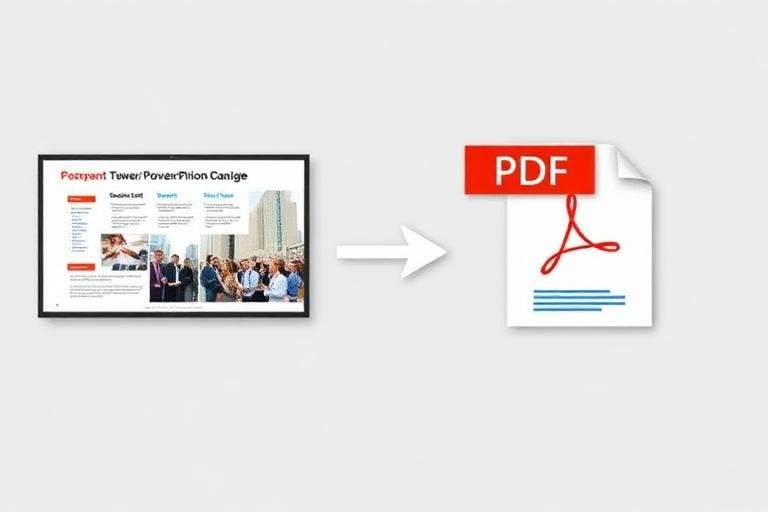
Open the PowerPoint to PDF tool on ZipDownloader.com
Upload your .pptx file
The conversion preserves your fonts, images, and layouts
Download your PDF - one page per slide
No software installation required. Works on any device - Windows, Mac, Chromebook, or tablet.
What Converts Perfectly (and What Doesn't)
Converts perfectly:
Text, fonts, and formatting
Images and photographs
Charts and graphs
Tables
Background colors and gradients
Shapes and SmartArt
Slide numbers and headers/footers
Doesn't transfer to PDF:
Animations and transitions (PDFs are static)
Embedded videos (will show as a still frame)
Audio clips
Hyperlink hover effects
Interactive elements
Sometimes tricky:
Custom fonts (embed them before converting)
3D effects and complex shadows
Transparency effects on some objects
Presenter notes (may need separate export)
Pro Tips for Perfect Conversion
Embed your fonts - Before converting, go to File → Options → Save and check "Embed fonts in the file." This ensures your exact typography survives the conversion.
Use standard slide sizes - Stick to 16:9 (widescreen) or 4:3 (standard). Custom slide sizes can cause unexpected cropping.
Flatten complex graphics - If you have intricate layered designs, consider grouping and flattening them before conversion. This prevents elements from shifting.
Check your output - Always open the PDF and flip through every slide. Spend two minutes checking rather than discovering problems after you've sent it to 200 people.
Export notes separately - If your slides have presenter notes, export a separate "Notes Pages" PDF. This gives each slide its own page with the notes below.
PowerPoint to PDF: Quality Settings
When exporting from PowerPoint directly, you typically get two quality options:
Standard quality (150 DPI) - Good for screen viewing, email sharing, and online distribution. Smaller file size.
High quality (300 DPI) - Necessary for printing. Larger file size but sharper images when printed.
For most email and sharing purposes, standard quality is more than sufficient. Reserve high quality for presentations that will be professionally printed.
Batch Converting Multiple Presentations
If you regularly convert presentations to PDF - say, a weekly sales report or monthly board deck - consider these approaches:
Online batch conversion - Upload multiple PPTX files at once on ZipDownloader.com
PowerPoint macro - Record a simple macro that exports the current file as PDF with one keystroke
Command-line tools - LibreOffice's command-line interface can convert PPTX to PDF in batch scripts
For organizations converting hundreds of presentations regularly, automating the process saves significant time.
The Bottom Line
Converting PowerPoint to PDF is straightforward when you understand what transfers and what doesn't. Embed your fonts, check your output, and use a reliable converter. Your presentations will arrive looking exactly as you intended - on every device, every time.
Written by Waseem, a Senior Software Engineer with 12 years of experience in secure web infrastructure, file systems, and data processing. Founder and lead developer of ZipDownloader. Learn more about us →
Ready to try it yourself?
Use our professional tools to process your files safely and instantly in your browser.