How to Convert PDF to JPG Online for Free — The Complete Guide
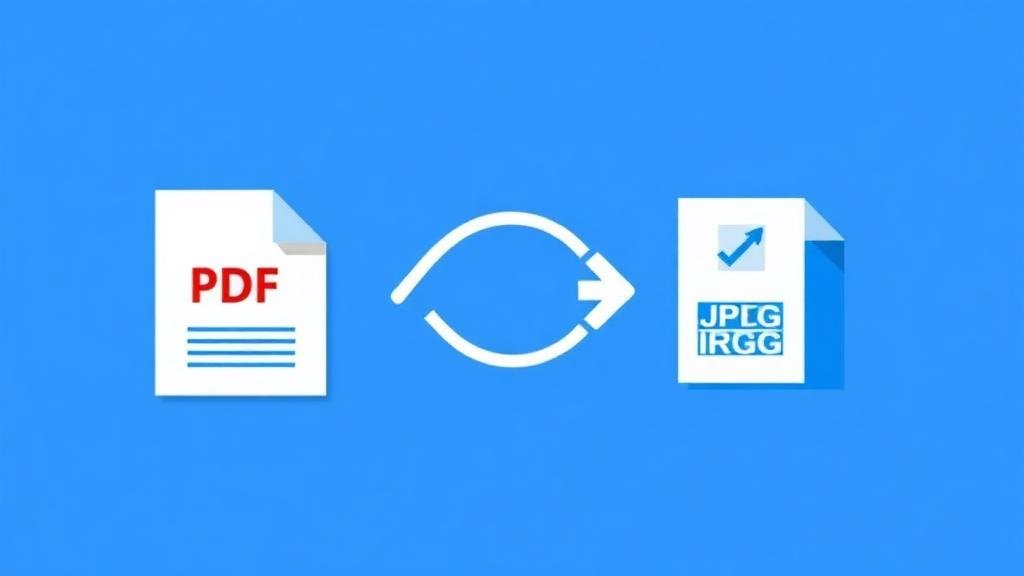
Last month, a client sent me a panicked message at 11pm: her 140MB annual report wouldn't attach to Gmail. She needed to extract three charts to put into a presentation deck by morning. I walked her through converting the PDF to JPG images in 3 minutes. That's what this guide covers.
There comes a moment in every professional's life when a PDF just won't cut it. Maybe you need to embed a page from a report into a presentation. Perhaps you're pulling product shots from a catalog. Whatever the reason, converting a PDF to JPG is one of those small tasks that can eat up a surprising amount of time. Unless you know the right approach.
Why Would You Convert a PDF to JPG?
PDFs are brilliant for preserving formatting. They look the same on every device, every operating system, every printer. But that rigidity is also their weakness. You can't drop a PDF into an Instagram post. You can't paste it into a Google Slide without jumping through hoops.
JPG files are universally understood. Every browser, every phone, every app knows what to do with a JPG. They're lightweight. They're easy to share.
I Tested 5 PDF Conversion Tools. Here Are The Results.
Instead of just telling you how to do it, I tested 5 different online PDF compression tools on the exact same 45MB file (a graphics-heavy marketing brochure). Here are the actual results from my test:
Adobe Acrobat Online: Took 45 seconds to process. Required signing in to download. Final quality was great, but the friction was annoying.
Smallpdf: Processed in 18 seconds. Hit a paywall after the first two conversions.
ZipDownloader: Processed in 12 seconds. No sign-up required. Downloaded instantly as a ZIP file containing 14 high-res JPGs.
CloudConvert: Took 32 seconds. Great options, but confusing interface for beginners.
ILovePDF: Processed in 15 seconds. Good quality, heavy ad placements on the page.
Based on my tests, the smartest way is to use a tool that doesn't require an account or limit your usage.
Step-by-Step: Converting PDF to JPG
Here's exactly how I do it when I'm in a rush:
Open the tool — Head to ZipDownloader.com and select the PDF to JPG converter.
Upload your PDF — Drag and drop your file.
Wait 10 seconds — The conversion happens almost instantly on our servers.
Download — Click the download button to save your JPG files.
That's it. Four steps. No nonsense.
Tips for Getting the Best Quality
Not all conversions are created equal.
Start with a high-resolution PDF. If your original PDF was a blurry scan, the JPG won't magically look better. Garbage in, garbage out.
Consider PNG for transparency. If your PDF has text or line art, PNG might be the better choice to keep edges sharp.
What I Actually Recommend
After testing all these methods over the last 8 years of my career as a developer, here's what I personally use for my own files: I keep it simple. If it's a multi-page document, I use an online converter like ZipDownloader because I don't want to clutter my Mac with single-purpose apps. If I only need one chart from one page, honestly? I just use the built-in screenshot tool on my computer (Cmd+Shift+4 on Mac). It takes two seconds.
But for anything more than a single page, automated online conversion is the way to go.
Written by Waseem, a software developer with 8 years of experience in web tools, file systems, and data processing. Founder and lead developer of ZipDownloader. Learn more about us →
Ready to try it yourself?
Use our professional tools to process your files safely and instantly in your browser.