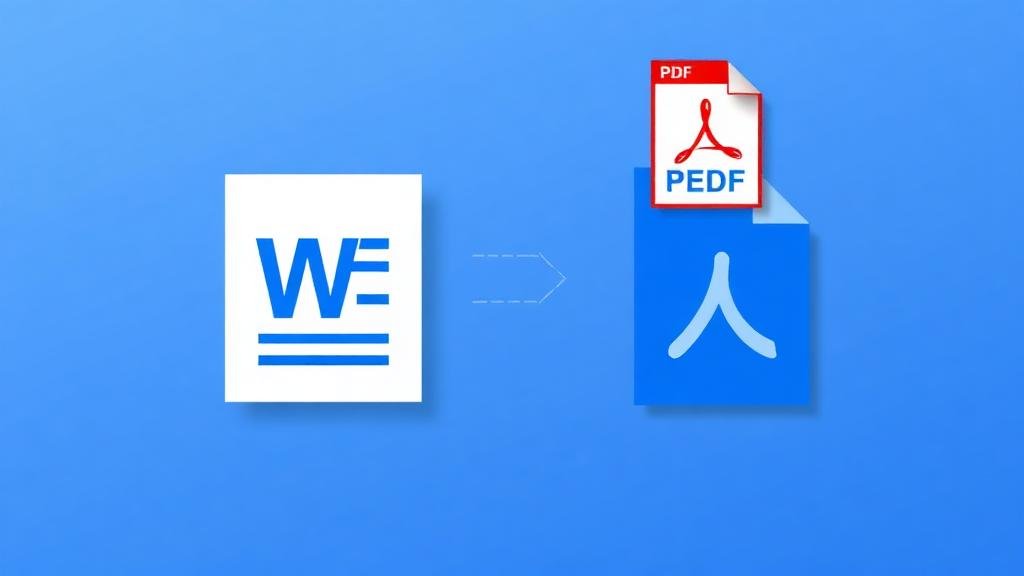
How to Convert a Word Document to PDF — Free, Fast & Foolproof
You've spent hours perfecting a Word document. The formatting is immaculate. The margins are precise. The fonts look exactly right. Then you email it to someone, and they open it on their computer — and everything looks different. Fonts are substituted. Tables are misaligned. Page breaks are in the wrong places.
This is why PDF exists. And this is why converting your Word documents to PDF before sharing them is one of the simplest yet most important habits you can develop.
Why Convert Word to PDF?
Consistent formatting — A PDF looks identical on every device, every operating system, and every screen size. The person receiving your file sees exactly what you created.
Professional appearance — Sending a .docx file screams "draft." Sending a PDF says "this is final." It's a subtle difference that matters in business.
Smaller file sizes — PDF files are typically smaller than their Word counterparts, especially when the document contains images.
Security — PDFs can't be easily edited by the recipient (without specialized software), which protects your content from unauthorized changes.
Universal compatibility — Not everyone has Microsoft Word installed. But every computer, phone, and tablet can open a PDF.
How to Convert Word to PDF Online
Using ZipDownloader.com, the process takes about 10 seconds:
Open the Word to PDF tool.
Upload your .docx or .doc file.
Click Convert.
Download your perfectly formatted PDF.
The conversion preserves your fonts, images, tables, headers, footers, and page numbers. What you see in Word is what you get in the PDF.
What About Formatting Issues?
Most modern converters handle Word-to-PDF conversion flawlessly, but there are a few edge cases to be aware of:
Custom fonts — If your document uses a font that isn't widely available, it might be substituted in the PDF. Solution: embed fonts in your Word document before converting (File → Options → Save → Embed fonts).
Complex tables — Very intricate table layouts occasionally shift slightly during conversion. Always check the output.
Active content — Macros, form fields, and interactive elements don't transfer to PDF. They'll appear as static content.
Headers and footers — These almost always convert correctly, but double-check if they contain dynamic fields like file paths.
Word to PDF vs. Print to PDF
Your computer actually has a built-in PDF converter: the "Print to PDF" function. It works, but it has limitations. Print to PDF literally prints a digital version of your document, which means:
Hyperlinks might not be preserved
The document outline (bookmarks) won't be created
Some formatting nuances can be lost
A dedicated converter like ZipDownloader.com uses intelligent conversion that preserves hyperlinks, bookmarks, and metadata — giving you a higher-quality result.
Best Practices
Always review the output — Open your PDF after conversion and scroll through every page. It takes 30 seconds and can save you embarrassment.
Name your files properly — "Document1.pdf" is not a good filename. "Smith-Proposal-March-2026.pdf" is.
Check file size — If your PDF is enormous (50MB+), your Word document probably has uncompressed images. Compress them before converting.
Use the right page size — Make sure your Word document is set to the correct paper size (A4, Letter, etc.) before converting.
Written by Waseem, a software developer with 8 years of experience in web tools, file systems, and data processing. Founder and lead developer of ZipDownloader. Learn more about us →
Ready to try it yourself?
Use our professional tools to process your files safely and instantly in your browser.