The Ultimate Guide to PDF Security and Encryption
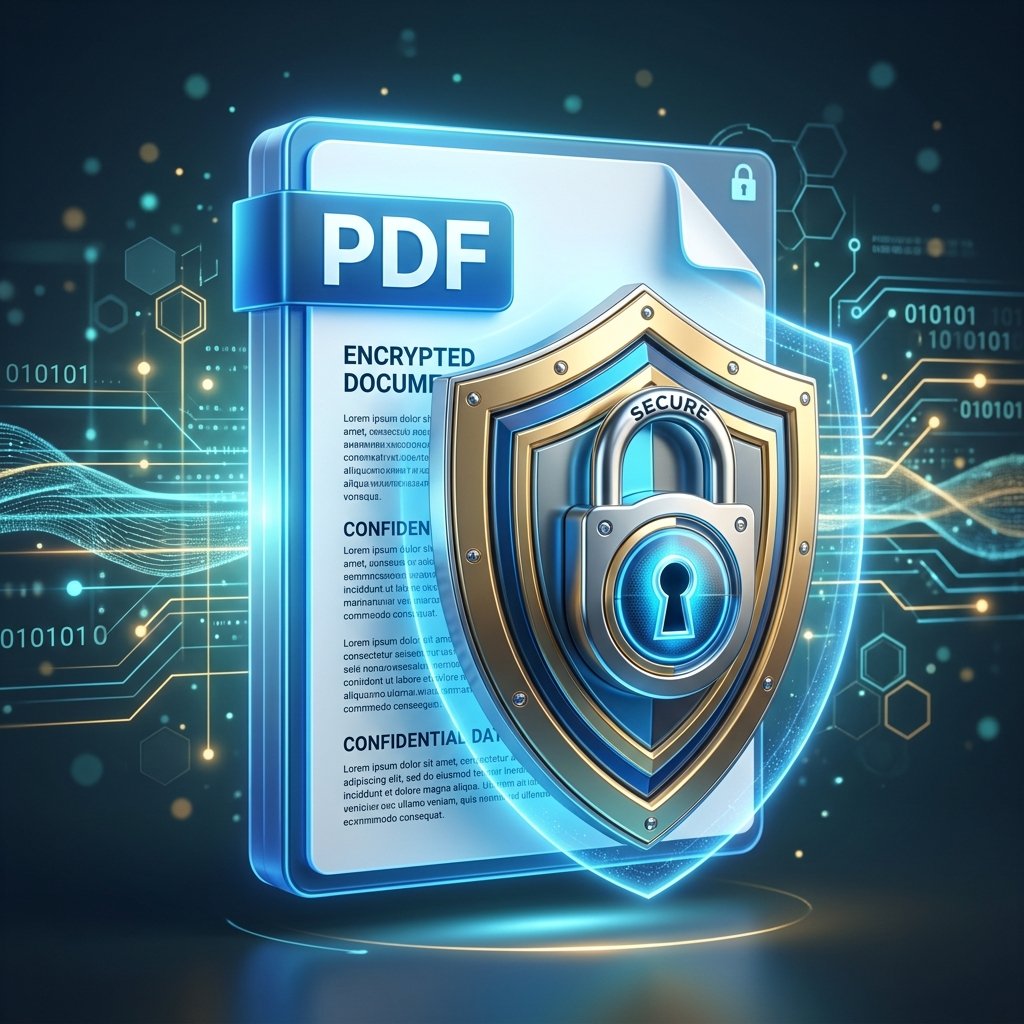
The PDF format is incredible for sharing documents, but its built-in security features are widely misunderstood. If you've ever "locked" a PDF to prevent someone from copying the text, you might be surprised to learn how easily that protection can be bypassed.
Let's dive into how PDF security actually works, and how to genuinely protect your documents.
The Two Types of PDF Passwords
PDFs support two entirely different types of passwords. Understanding the difference is critical.
1. The Owner Password (Permissions)
This is what people use when they want to prevent printing, copying text, or editing the document.
The hard truth: Owner passwords offer almost zero real security. They rely entirely on the PDF viewer "respecting" the rules. Many third-party PDF readers and online unlocking tools will simply ignore the owner password and let anyone copy or print the document anyway.
2. The User Password (Encryption)
This is the password required just to *open* the document.
The hard truth: This is highly secure. If a PDF is encrypted with a User Password using modern AES encryption, the actual contents of the file are scrambled. No one can read the file without the password.
How to Truly Secure a PDF
If you have highly sensitive information (like financial records or personal data), do not rely on permissions. You must encrypt the file to require a password to open it.
Alternative: Flattening the PDF
If you just want to prevent someone from easily copying text or modifying a signature, but you don't want the hassle of a password, you can "flatten" the PDF.
Flattening converts all the text and interactive elements into static images. You can achieve this by converting your PDF to images using a PDF to JPG converter, and then converting those images back into a PDF using a JPG to PDF tool.
The resulting file will look identical, but none of the text will be selectable. (Note: A determined user could still use OCR software to read the text, but it stops casual copying).
Summary
Want to stop someone from reading the file? Use a User Password.
Want to stop casual text copying without a password? Flatten the PDF by converting it to images and back.
Relying on "Permissions" alone is a false sense of security.
Written by Waseem, a Senior Software Engineer with 12 years of experience in secure web infrastructure, file systems, and data processing. Founder and lead developer of ZipDownloader. Learn more about us →
Ready to try it yourself?
Use our professional tools to process your files safely and instantly in your browser.